WMI Defense
乌云历史资料归档
原始作者: 三好学生 原始编号: superkieran-wooyundrops:744 原始发布时间: 2015-09-07 10:20 声明:内容仅用于技术研究和个人使用,版权归 wooyun.org。
0x00 前言
前两篇分别介绍了WMI Attacks & WMI Backdoor,侧重于攻击,所以这篇介绍一下WMI Defense,攻防结合,便于大家更清楚认识WMI.
0x01 简介
本篇侧重于介绍如何通过Powershell调用WMI监视自身系统、记录入侵行为,并对WMI的检测工具做具体测试。
0x02 测试环境
Win8 x86 powershell v3(win8默认安装) 开启Winmgmt服务,支持WMI
0x03 监视系统
*注: 以下均为Powershell代码
1、监视进程创建
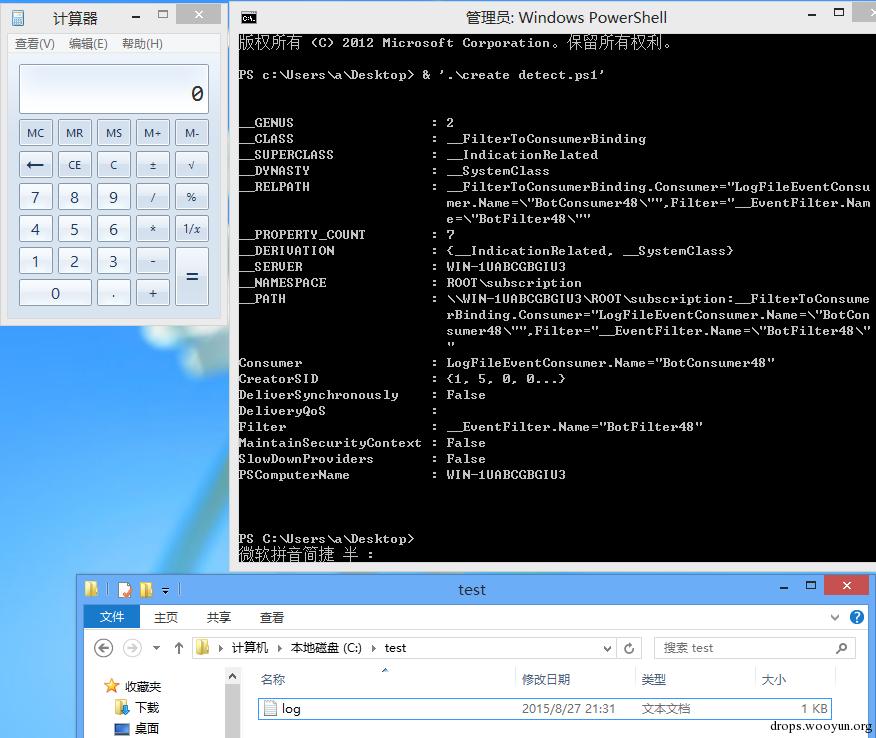
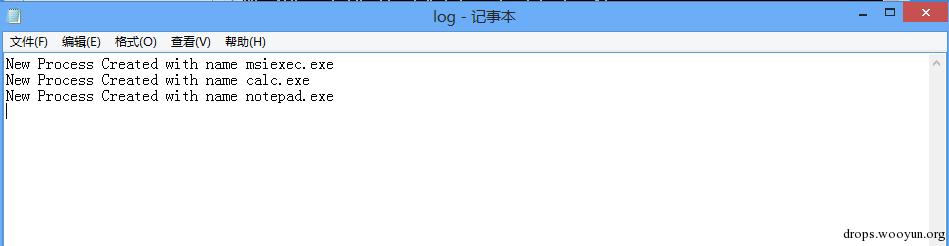
$filterName = 'BotFilter48' $consumerName = 'BotConsumer48' #查询进程创建事件 $Query = "SELECT * FROM __InstanceCreationEvent WITHIN 5 WHERE TargetInstance ISA 'Win32_Process'" $WMIEventFilter = Set-WmiInstance -Class __EventFilter -NameSpace "root\subscription" -Arguments @{Name=$filterName;EventNameSpace="root\cimv2";QueryLanguage="WQL";Query=$Query} -ErrorAction Stop #写入日志文件 $Arg =@{ Name=$consumerName Filename = 'C:\test\log.log' Text = 'New Process Created with name %TargetInstance.Name%' } $WMIEventConsumer = Set-WmiInstance -Class LogFileEventConsumer -Namespace "root\subscription" -Arguments $Arg Set-WmiInstance -Class __FilterToConsumerBinding -Namespace "root\subscription" -Arguments @{Filter=$WMIEventFilter;Consumer=$WMIEventConsumer}
如图
2、监视进程结束
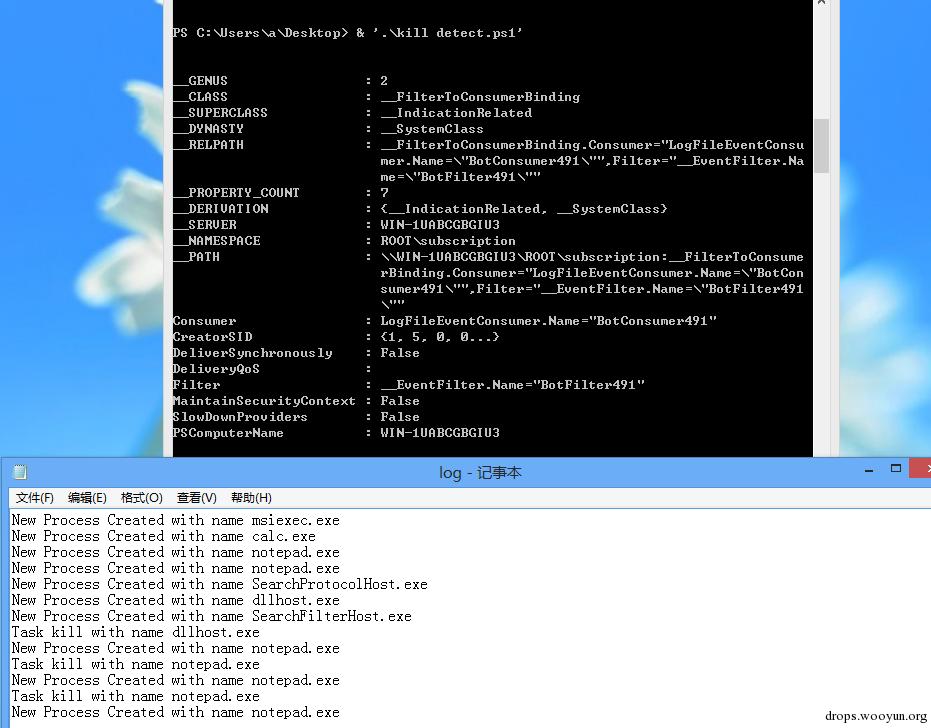
$filterName = 'BotFilter49' $consumerName = 'BotConsumer49' # 查询进程结束事件 $Query = "SELECT * FROM __InstanceDeletionEvent WITHIN 5 WHERE TargetInstance ISA 'Win32_Process'" $WMIEventFilter = Set-WmiInstance -Class __EventFilter -NameSpace "root\subscription" -Arguments @{Name=$filterName;EventNameSpace="root\cimv2";QueryLanguage="WQL";Query=$Query} -ErrorAction Stop $Arg =@{ Name=$consumerName Filename = 'C:\test\log.log' Text = 'Task kill with name %TargetInstance.Name%' } $WMIEventConsumer = Set-WmiInstance -Class LogFileEventConsumer -Namespace "root\subscription" -Arguments $Arg Set-WmiInstance -Class __FilterToConsumerBinding -Namespace "root\subscription" -Arguments @{Filter=$WMIEventFilter;Consumer=$WMIEventConsumer}
如图
3、监视注册表
(1)监视单一键值
$filterName = 'BotFilter51' $consumerName = 'BotConsumer51' $Query ="SELECT * FROM RegistryKeyChangeEvent WHERE Hive='HKEY_LOCAL_MACHINE' AND KeyPath='SOFTWARE\\Microsoft\\Windows\\CurrentVersion\\Run'" $WMIEventFilter = Set-WmiInstance -Class __EventFilter -NameSpace "root\subscription" -Arguments @{Name=$filterName;EventNameSpace="root\default";QueryLanguage="WQL";Query=$Query} -ErrorAction Stop $Arg =@{ Name=$consumerName Filename = 'C:\test\log.log' Text ='The change is HKEY_LOCAL_MACHINE\\%KeyPath%' } $WMIEventConsumer = Set-WmiInstance -Class LogFileEventConsumer -Namespace "root\subscription" -Arguments $Arg Set-WmiInstance -Class __FilterToConsumerBinding -Namespace "root\subscription" -Arguments @{Filter=$WMIEventFilter;Consumer=$WMIEventConsumer}
监视 “HKEY_LOCAL_MACHINE\SOFTWARE\Microsoft\Windows\CurrentVersion\Run” 键值的任何改动 如图
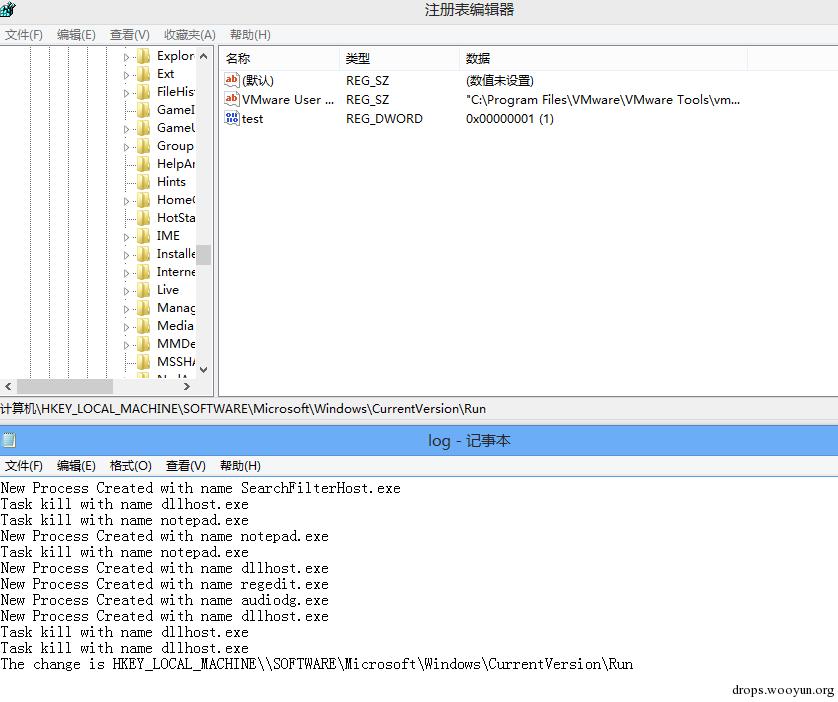
(2)监视某一键值及其子键 监视 “HKEY_LOCAL_MACHINE\SOFTWARE\Microsoft” 键值及其子键的任何改动
$filterName = 'BotFilter52' $consumerName = 'BotConsumer52' $Query ="SELECT * FROM RegistryTreeChangeEvent WHERE Hive='HKEY_LOCAL_MACHINE' AND RootPath='SOFTWARE\\Microsoft\\'" $WMIEventFilter = Set-WmiInstance -Class __EventFilter -NameSpace "root\subscription" -Arguments @{Name= $filterName;EventNameSpace="root\default";QueryLanguage="WQL";Query=$Query} -ErrorAction Stop $Arg =@{ Name=$consumerName Filename = 'C:\test\logtree.log' Text ='The change is HKEY_LOCAL_MACHINE\\%RootPath%' } $WMIEventConsumer = Set-WmiInstance -Class LogFileEventConsumer -Namespace "root\subscription" -Arguments $Arg Set-WmiInstance -Class __FilterToConsumerBinding -Namespace "root\subscription" -Arguments @{Filter= $WMIEventFilter;Consumer=$WMIEventConsumer}
0x04 检测工具测试
测试工具:
Sysinternals Autoruns
检测目标: 能否查出所有WMI定时运行的操作 测试方法: 在目标主机运行包含以下Consumer的定时运行操作,使用Sysinternals Autoruns进行检测。
-ActiveScriptEventConsumer -CommandLineEventConsumer -LogFileEventConsumer -NTEventLogEventConsumer -ScriptingStandardConsumerSetting -SMTPEventConsumer
测试结果: 如图
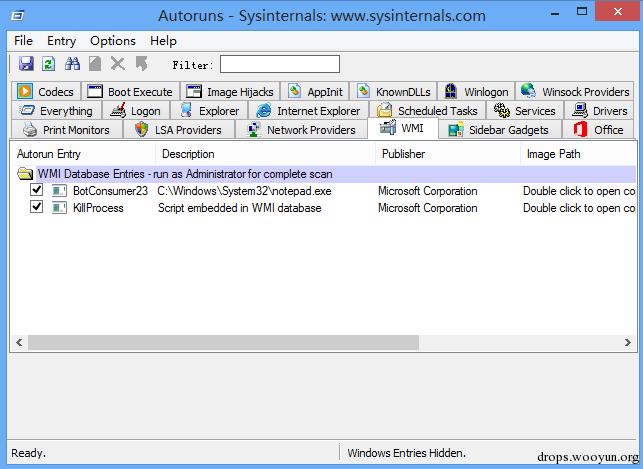
Sysinternals Autoruns只能检测到ActiveScriptEventConsumer和CommandLineEventConsumer的操作,可以理解为上述对进程和注册表监视的操作无法识别 解决措施: 直接查询WMI调用,即可获得所有定时执行的操作
#List Event Filters Get-WMIObject -Namespace root\Subscription -Class __EventFilter #List Event Consumers Get-WMIObject -Namespace root\Subscription -Class __EventConsumer #List Event Bindings Get-WMIObject -Namespace root\Subscription -Class __FilterToConsumerBinding
0x05 WMI使用补充
以上三篇关于WMI的文章均采用Powershell实现,当然用mof和vbs也能够实现,这里给出一些参考代码,其他功能代码按照格式修改即可
1、mof文件记录注册表修改的操作
(1)以下文件保存为reg.mof文件
#pragma namespace ("\\\\.\\root\\subscription") instance of __EventFilter as $Filter { Name = "RunKeyFilter"; QueryLanguage = "WQL"; Query = "Select * from RegistryTreeChangeEvent" " where (Hive = \"HKEY_LOCAL_MACHINE\" and " "KeyPath = \"Software\\\\Microsoft\\\\Windows" "\\\\CurrentVersion\\\\Run\")"; // RegistryTreeChangeEvents only fire // in root\default namespace EventNamespace = "root\\default"; }; instance of LogFileEventConsumer as $Consumer { Name= "consumer1"; Filename = "C:\test\log.log"; Text ="The change is HKEY_LOCAL_MACHINE\\%KeyPath%"; }; // Bind the filter to the consumer instance of __FilterToConsumerBinding { Filter = $Filter; Consumer = $Consumer; };
(2)编译mof文件 命令行下管理员权限执行mofcomp reg.mof
2、vbs文件记录注册表修改的操作
strComputer = "." Set objWMIService = GetObject("winmgmts:\\" & strComputer & "\root\default") Set colEvents = objWMIService.ExecNotificationQuery _ ("SELECT * FROM RegistryKeyChangeEvent WHERE Hive='HKEY_LOCAL_MACHINE' AND " & _ "KeyPath='SOFTWARE\\Microsoft\\Windows\\CurrentVersion\\Run'") Do Set objLatestEvent = colEvents.NextEvent Wscript.Echo Now & ": The registry has been modified." Loop
0x06 小结
以上三篇对WMI Attacks、WMI Backdoor、WMI Defense做了全面介绍,时间有限细节之处难免会有疏忽,欢迎大家共同交流,共同学习,我会在留言作适当补充更正:)
本文由三好学生原创并首发于乌云drops,转载请注明